Messages, reminders and automations
Send confirmations, reminders and follow-ups on their own, text or email a bride yourself, and build automations like “Dress arrived”.
Messages that go out on their own
- Open Settings, Messages to customers (owners change it; managers can look).
- For each message, tick Email, Text or both:
- Confirmation: as soon as an appointment is booked, and again if it moves;
- Reminder: a set number of hours before;
- "Still thinking?" follow-up: a set number of days after a visit marked Thinking, if she hasn't booked again;
- Waitlist opening: when you offer a canceled time.
- Open Change the wording to rewrite any of them. Fill-ins like
{first_name}are replaced with her details. - Press Save messages.
The card shows whether email and texting are ready. Texts start once texting is on for your store (see Texting and email (built in)); until then only emails go out. Nobody who opted out gets messages, and a bride who texts STOP gets no more texts.
Email look
Every email to customers (confirmations, reminders, follow-ups, the waitlist, automations and messages you write) goes out in your store's look. Find it in Settings, Email look (owners change it; managers can look, preview and send a test).
- Pick a layout: Simple, Photo header (a picture across the top), Card (your color behind the logo), or Plain text only.
- Colors come from your website settings, or choose your own button and background colors.
- Upload your logo (or use the store logo), and the header picture for the photo layout.
- Under Footer and social links, add your website, Instagram, Facebook, TikTok and Pinterest, and a line for the bottom. The footer always has your store name, address, phone and the one-click unsubscribe link.
- Look at the preview at phone or computer width (try your own wording under Preview with other wording), press Send a test to me, then Save email look.
Your wording does not change. A line that is only a link, or Label: link like Move or cancel online: …, becomes a button; so does [Pay your balance](link). To put a picture in an email, upload it under Pictures in an email, copy its line and paste it on its own line in the message. A plain-text copy always goes along with every email, so it reaches every inbox, and the colors stay readable when the phone is in dark mode.
Write to one bride
On her customer page, the Messages card has a box to send her an email or a text, and a list of everything sent to her and her replies.
Automations
Automations do things on their own when something happens: a dress arrives, a wedding is two weeks away. Find them in Settings, Automations.
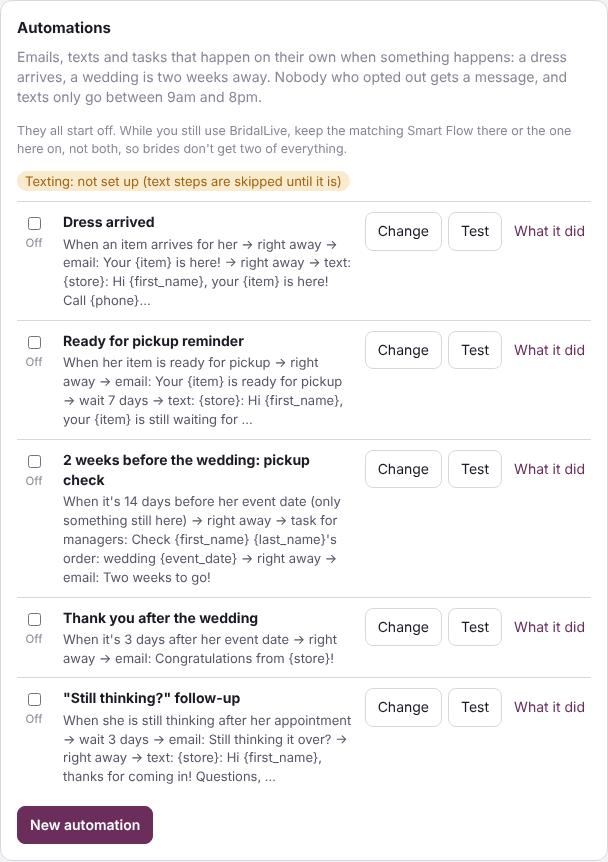
- Ready-made ones are grouped by a bride's journey: appointment confirmation and reminder, thank you after her visit, "still thinking?", walked away, missed appointment, order placed, dress arrived, pickup reminder, balance due, payment plan reminders, wedding-day congratulations, thank you after the wedding, review request, birthday and anniversary. They all start off.
- Turn one on with its switch. First you see who it would reach this week, and who is skipped and why (no email address, said no to texts). Press Turn it on or Not now.
- Press Change to edit one, or New automation to build your own. It reads like a sentence: When something happens (she books, it's a number of days or hours before her appointment, she walks away, her item is ordered or arrives, days before or after her event, her birthday or anniversary...), wait some hours or days, only if something is still true (she has no appointment coming up, she still owes, she hasn't replied...), then send her an email or text, make a task, change her customer type, or email the team.
- Under Stop the rest when she…, pick what ends it early: she books, buys, replies or cancels. If she texts STOP or unsubscribes, the rest always stops.
- Open Who would get it this week to check before saving. Press Test to send it only to yourself.
History shows every message each automation sent (what she got, word for word), what is waiting (with Send now and Skip), and what was skipped and why.
Rules for every automation: the hours texts may go out (9am to 8pm unless you change it, in your store's time), whether emails wait for those hours too, a switch to pause everything, and your review link for the review request. While the ready-made confirmation or reminder is on, the one in Settings, Messages stands down, so she gets one, not two.