Reports and commissions
See how the store is selling, how each consultant is doing, what is owed, and what each person earns. Owners and managers only.
Open Reports. Staff don't see this tab. Pick the report you want from the list under it in the left menu; the last one you picked opens next time.
Which day counts: your choice
In Settings › When things count the owner picks three things. Reports are figured from your choice each time, so a change shows in past dates too.
- When does a sale count? The day it is written, the day it is picked up (the usual), or the day it is paid in full. This sets sales reports, average ticket, the close rate on Home, and which sales tab opens first.
- When is commission earned? As money is collected (the usual), the day it is written, or the day it is picked up. A commission plan can set its own.
- Consultant stats: the day it is written (the usual) or the day it is picked up.
Sales tax always counts the day each item leaves the store, whatever you pick.
- Written sales: tickets rung up in the period, before tax. The line at the top says so.
- Picked-up sales: items that left the store in the period, less returns on the day they came back. Filter by consultant, department or vendor.
- Paid-in-full sales (if your store picked it): tickets paid off in the period.
- Collected: payments taken in the period.
- Deposits held: money paid on items that haven't left the store yet.
What's on the Reports screen
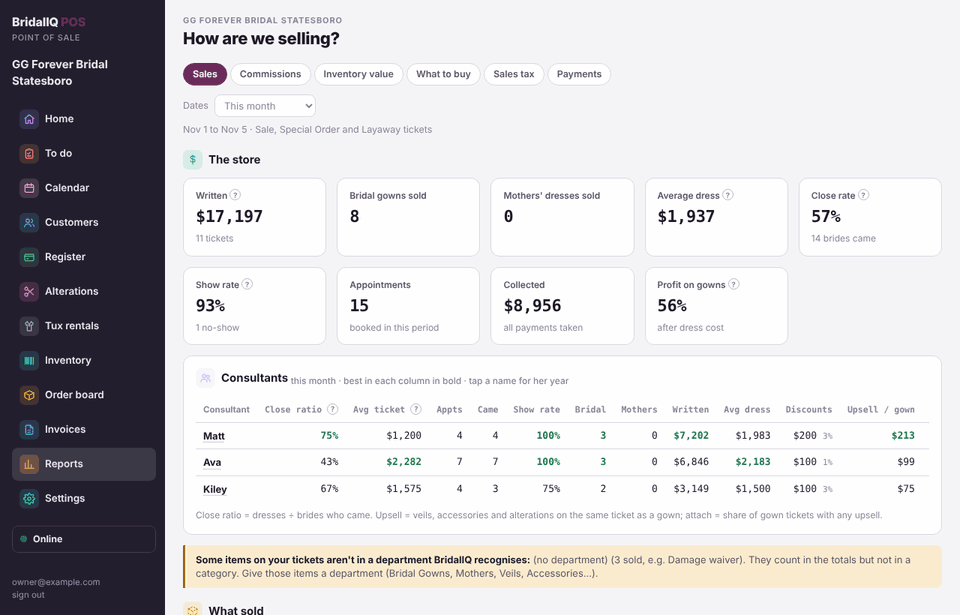
- The store: written, gowns sold, average dress, close rate, show rate, appointments and collected, for the dates you pick.
- Consultants: each person's close rate, average ticket, appointments, show rate and more. Click a name to see her year.
- What sold and the daily tracker.
- In the left menu: Written sales, Picked-up sales, Commissions, Inventory value, Designers, What to buy, Sales tax, Payments, Goals, Why brides didn't buy, Voided and removed, and All stores if you have more than one.
- Customer balances: what is still owed on open tickets, oldest first, and deposits held.
Time to sale
Time to sale (in the left menu) shows how long it takes from check-in to the sale (the first payment on her ticket): the average and the middle time (median) by consultant, by appointment type and by week, and the slowest visits. Appointments never checked in are timed from their start and marked not checked in. Walk-ins entered at the register count as visits. Pickups (picking up or buying without trying on) have no time and are counted on their own. Walk-aways show separately: check-in to when the visit was marked done. Times only, no money. A consultant can see her own times; managers and owners see everyone's.
Goals: goal vs actual
Goals (in the left menu) shows this month (or week) against your goals: sales, dresses, close rate, average ticket and appointments, for the store and each consultant, next to the same dates last year.
- On pace for: what you will reach by the end of the month at the rate so far. Need a day: what each day left (today included) has to bring in to reach the goal.
- Sales count on your store's own choice of day (written, picked up or paid in full); a consultant's numbers count on your consultant-stats day. Dresses are the departments ticked as a dress. Close rate is the visits marked Purchased out of the ones she came to.
- Press Set goals (managers and the owner). Fill in the boxes for the whole store and anyone you like; leave a box empty for no goal. Tick Use these goals for every month left this year to fill the year at once. A week with no goal of its own uses its month's goal spread over the days. A month with no goal uses your weekly goals from BridalIQ's settings, when you set them there.
- The year table lists each month's goal, actual and last year.
- Home and the phone's Today screen show this month's goal. A consultant with a goal sees only her own: dresses, close rate and appointments, never dollar figures.
Why brides didn't buy
When a visit is marked Walked or Thinking, the POS asks Why didn't she buy today? Tap the reasons that fit (price, needs to bring mom, wants to keep looking, timing, size or fit, style not found, other), write a short note, and keep Remind me to follow up ticked to get a task on To do. The note stays with her appointment; the "Still thinking?" message and automations go out as before.
- Why brides didn't buy (in the left menu) counts the reasons by consultant, appointment type and month, and how many of those brides came back and purchased within the days you pick (a ticket, or a later visit marked Purchased).
- Coaching picks out the reason that keeps coming up for each consultant, for example 3 of the last 5 walk-aways for Kiley said needs to bring mom: invite the decision-maker when she books. A consultant sees her own tips on Home.
- Ask AI for themes reads the notes and suggests what to change, when the store's AI assistant is on (it follows the owner's switch and monthly limit). Only first names of consultants, the appointment type, the reasons, the notes with card numbers, emails and phone numbers taken out, and whether she purchased later are sent. Never a bride's name or any money. Without AI, the report and the tips still work.
My time to sale (for consultants)
Everyone who takes appointments (staff, a seamstress who sees brides, or a role the owner made with the calendar) sees her own numbers in a My time to sale card: how long her appointments take from check-in to purchase, next to the store's average. It is on Home, on the phone's Today screen, and in Settings › You. Pick this week, the last 4 weeks or the last 90 days.
- Your average and median from check-in to the sale, with a bar next to the store's average time (for example "12 min faster than the store").
- By appointment type and by week.
- Visits (appointments she came to), purchased, and the close rate (purchased ÷ visits).
- Walk-aways: how many, and how long they stayed.
No money is shown, and nobody sees another consultant's own numbers: the store's average is the only comparison. The card shows on Home only for people with appointments in the last six months. Managers and owners have their own card too, and everyone's times stay in Time to sale.
Commissions
- Pick Commissions in the left menu and pick the pay period.
- The owner presses Add a plan: a base percent, different percents by department, higher percents once someone's month passes an amount, or a flat amount per item in a department. A plan follows the store's choice of when commission is earned unless you set its own.
- Give each person a plan.
- Click a person to see every payment: the date, ticket, customer, amount, its tax part, the part that earns commission, the rate and the commission (or every item, if commission is earned when written or picked up).
Commissions are part of the Shop plan and up.
As money is collected (the usual): each deposit, payment and balance earns on its amount less its sales tax, on the day it was paid, for the consultant on the ticket. A refund takes it back on its day. Tax part = payment × ticket tax ÷ ticket total, and the parts add up to the ticket's tax. Two consultants on one ticket each earn on their own items. Gift card sales earn nothing. Paying with a gift card or store credit earns nothing, and a refund given back as store credit or onto a gift card takes nothing back, unless the owner turns on Payments made with gift cards or store credit earn commission (Settings, Staff and money): then those payments earn like cash, less their tax part, and a refund to store credit or a gift card takes it back. The gift card sale itself still earns nothing, so each dollar earns once. Like every report setting, it is figured each time, so it changes past dates too. Higher-percent tiers use what she has collected so far that month.
Designers
Designers (in the left menu) shows how each designer is doing, best sellers first. Owners and managers only.
- On hand and on order (not received yet, for brides or for the floor).
- Sold in the last 12 months, less returns, counted on your store's choice of when a sale counts. Dresses only: the departments ticked as a dress in Settings, Dresses and walk-aways.
- Sales and the average price after discounts.
- Profit per gown: the price less what you paid. Only people who can see costs see it; gowns with no cost are counted apart.
- Sell-through: sold ÷ (sold + on hand). Months of stock: on hand ÷ pieces sold a month. Lower is fresher.
- Download CSV for a spreadsheet.
Voided and removed
Managers and owners: Voided and removed (in the left menu) lists everything voided, removed, canceled or turned off in the dates you pick: tickets and ticket items, payment plans, vendor payments, counts, transfers, items and people turned off. Each line says when, who did it, what it was, the customer and amount when there is one, and the reason given. Pick a kind to see just that. It reads the history, so nothing can be left off.
Which departments count as a dress
Settings, Dresses and walk-aways. The owner ticks each department as A dress (counted in close rate, average sale and dresses sold), An upsell (veils, accessories and alterations sold with a dress) or Neither. Managers and the owner set after how many days with no payment the POS asks Did she walk away? on a dress ticket with money down. Every change is kept in the history.
Ask BridalIQ AI and Help me fix this
- Need an answer quickly? The Ask BridalIQ box on Home answers questions about your store, like who sold the most gowns this month? Type your question and press Ask me. It answers only from your store's own records. Managers and the owner get the numbers; staff get answers with no sales figures.
- Help me fix this is on each thing to fix in To do: step-by-step help for that one problem. It explains; you make the change.
- The owner turns AI on or off, sets a monthly limit and picks whether staff can use it in Settings, AI assistant, which also shows what was used this month. AI pauses until the 1st when the limit is reached.
- Only what the answer needs is sent to the AI service, never card numbers. The POS keeps how many questions were asked and what they cost, not the questions or answers. If the button says AI isn't set up, BridalIQ has not added the AI key for your store yet.
Sales by day
Reports, Sales by day: sales for each day of any dates you pick, counted on your sale day (Settings, When things count), never by when the money came in. Money taken in each day is on Payments. Download for Excel gives one row per day with a total. The sales tabs also have CSV by day.
Cancelled and forfeited
Every item canceled or forfeited in the dates you pick: who, why, what went back to her (refund or store credit), the Restocking fee the store kept (and why, if a manager changed the rule's amount), and what happened to the piece. Restocking fees are income on the forfeit day. They show beside sales on the sales tabs, never inside them. The sales tabs also show alterations apart from everything else.